
Play media
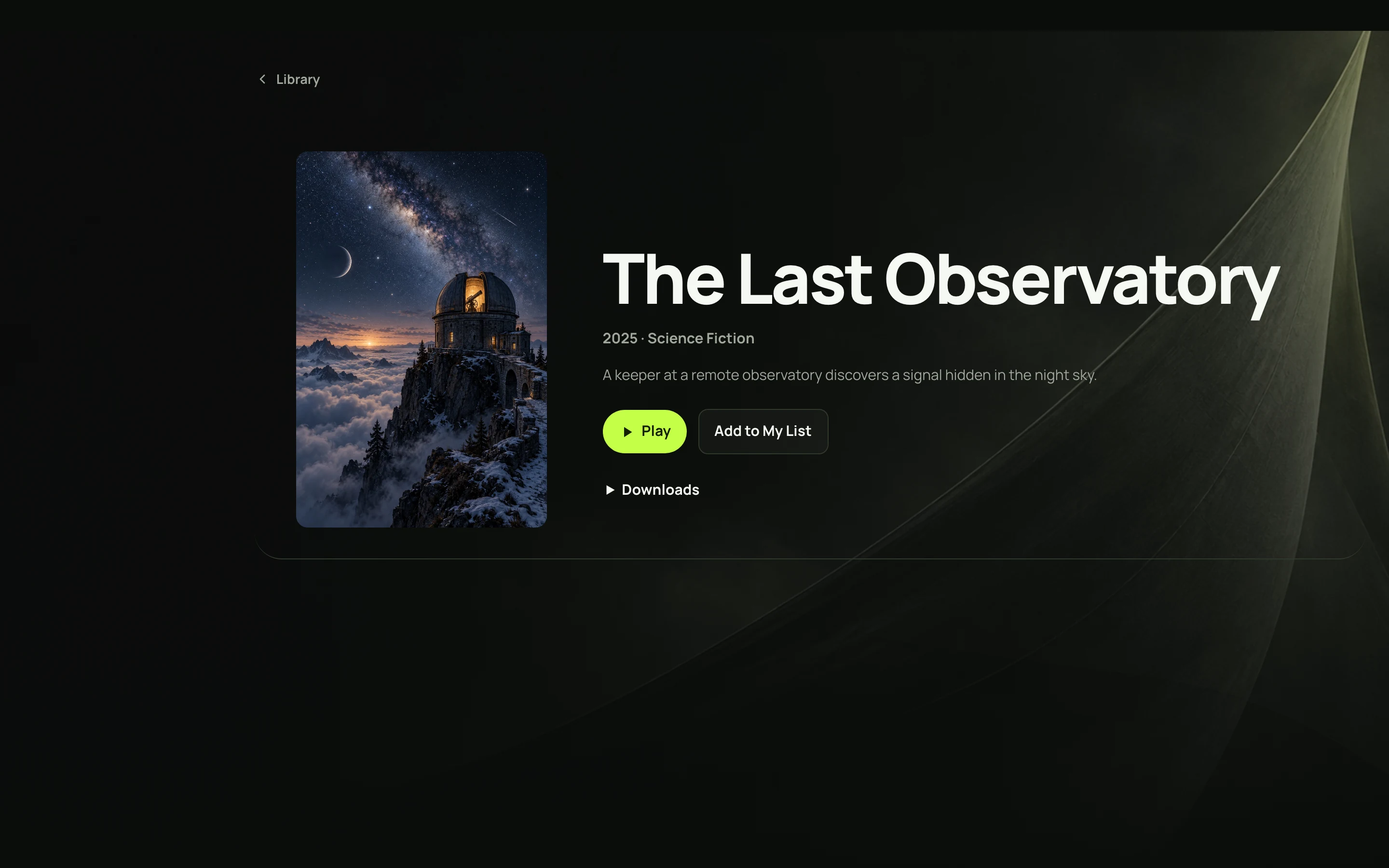
Open a media item and select Play. Kinosail saves your position and watched state for your Profile.
Use the player
The player provides controls that depend on the media type and device:
- Play or pause, mute, volume, seek, theater mode, and full screen.
- Go back or forward 10 seconds.
- Choose subtitles from embedded or sidecar text tracks.
- Choose an audio track when the file has more than one.
- Open Chapters and select a chapter.
- Skip detected or Owner-created recap, intro, commercial, outro, or credits markers when the control appears.
- Continue to the next episode when the item belongs to a Show and another episode is available.
Video and audio progress is private to your Profile. Kinosail records progress while you watch. You can mark a supported item watched or unwatched from its detail page.
Audiobooks also provide playback speed and a sleep timer. Music queues support low-gap playback when the device supports it. Photos use an image viewer instead of audio or video controls.
Choose a playback mode
Open Playback & downloads on an item when the mode link is available. Kinosail supports these modes:
| Mode | Behavior | Use it when |
|---|---|---|
| Automatic | Tries a direct stream first. It can fall back to remuxing, audio conversion, or an HLS compatibility stream when the device cannot play the source or when a playback feature needs a compatible stream. | Use this default for most devices. |
| Direct | Requests the original media path and byte-range seeking. It does not transcode. | Use this when the device supports the source and you want to avoid Server conversion. |
| Compatibility | Requests an HLS transcoded stream for broad device compatibility. | Use this when Direct does not play or the device needs a converted format. |
Direct playback depends on the source container, video codec, audio codec, subtitles, browser, and device. A file can be accepted by the scanner but still require a compatible stream in a particular browser.
Automatic playback can use supported hardware acceleration. The Owner controls transcoding policy and capacity. A Viewer without transcoding permission cannot use a required transcoded stream.
Use the Quality control in an adaptive player to choose Auto or an available quality. Lower quality can help when the connection cannot sustain the source bitrate. The available levels depend on the source and Server.
Select subtitles and audio
Open the CC control or Playback settings and choose a subtitle track. Choose Off to hide subtitles. Kinosail can use embedded tracks and trusted sidecar text subtitles.
Set Preferred language in Settings → Subtitles. Kinosail selects a matching local track when one is available. Name sidecars with a language code, such as Movie.en.vtt or Movie.fr.srt.
If the source has multiple audio tracks, open Audio tracks and choose a track. Selecting a track can open a compatible playback URL for the chosen stream.
Use offline preparation
If your Profile allows downloads, select Prepare offline and choose the offered quality. Kinosail prepares the file on the Server. It does not place a file on your device until you select Download to this device or Save file from Offline downloads.
See Share and watch together for download limits and playback troubleshooting for buffering or unavailable playback.
Source of truth: internal/server/player.go and playback handlers.